The Digital Family History Guidebook
by Marlo E. Schuldt

Free Offer!

Get the 200+ page Digital Family Guidebook in PDF when you order Heritage Collector Suite.

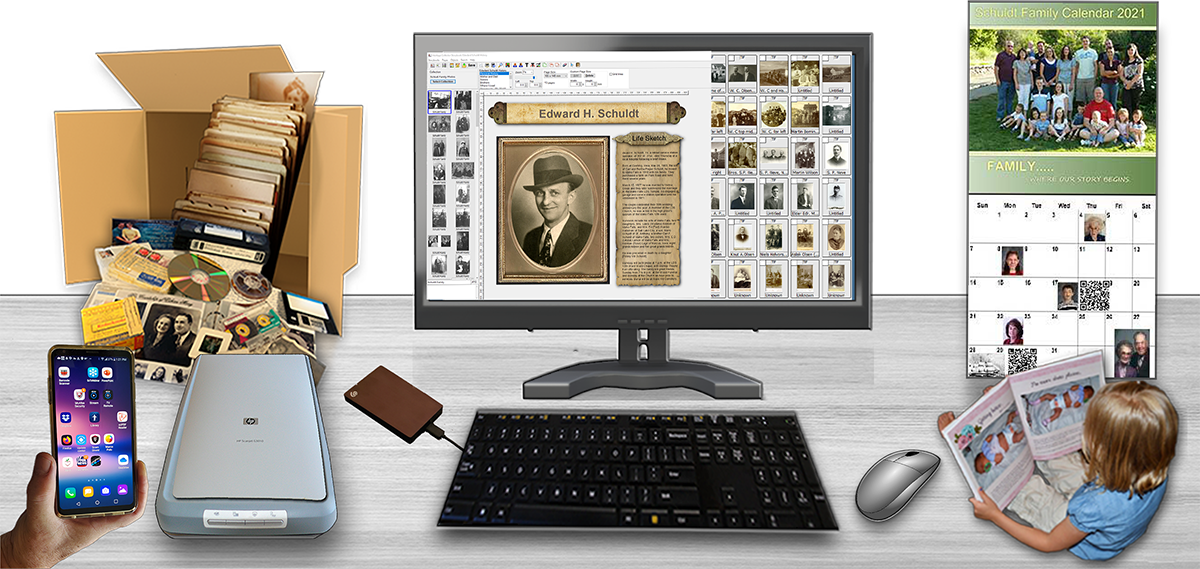
Over 200 Pages - Nine Chapters of helpful information designed to help you with family history projects while saving you time, money and frustration.

Nine chapters provide the help you need

  1. Where to Begin.
  2. Easier Scanning.
  3. Working With Sound.
  4. Digital Cameras, Video and GPS.
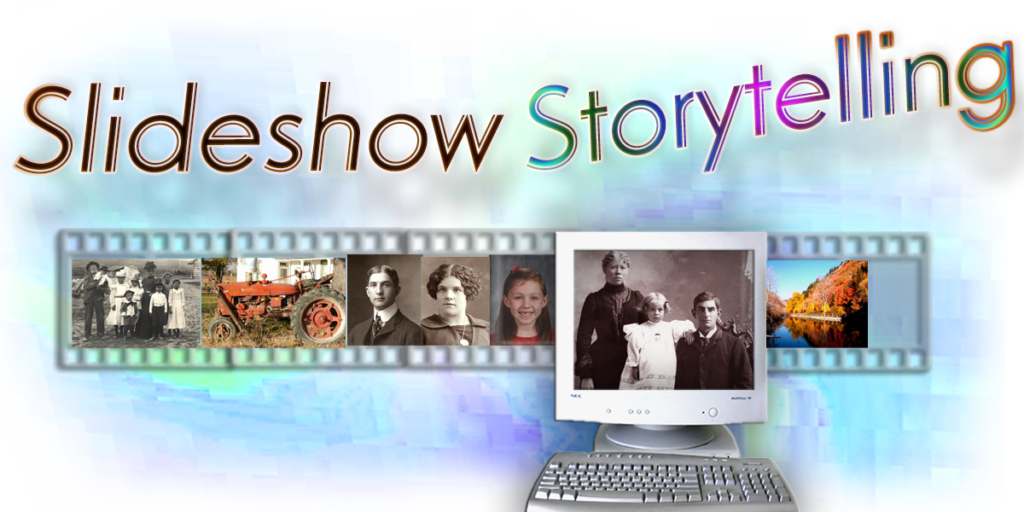
  5. Interactive Storytelling.
  6. Digital Scrapbook.
  7. Creating Hard Bound Books.
  8. Preservation and Archiving.
  9. Understanding your computer.

Additional Features

Registered users have access to updates ad the Guidebook Newsletter on the Registered Users Page.


 What People are Saying About the Guidebook

Reg Farnsworth writes . . .

“I’m relatively a new user to Pro-Media Suite and an avid amateur photographer and genealogist. I must say Heritage Collector Pro exceeds all of my expectations.
Like you I’ve have searched for a program that would compliment my family history and organizing lots of photo’s. I’ve tried many different programs in the past, only to be disappointed in its performance and ease of function.

It is without the slightest hesitation, I'd rate your software and handbook a five star plus (*****+).

The Guidebook is rock solid and chocked full of sound advice. Obviously, it speaks with the voice of experience. Anyone reading the mine field section of each chapter, would be rewarded in avoiding unexpected pitfalls, been there and done that too. It’s simply the best program on the market today. Was at first reluctant to try another program but, am so glad I did.

In just a short time after viewing the video’s in the basic program was up and running with ease. Highly recommend this marvelous program regardless of individual skills.

I’m positive other’s will not be disappointed either.
Happy and enthusiastic, thank you for the wonderful Software and Handbook.”

Sondra Buckwalter writes . . .

"When the Guidebook came out I was really excited because it actually teaches step by step what to do and what not to do in preserving photos, sound bites, videos etc. It is so simply written with graphic aids, how can anyone go wrong! It is the best teaching tool I have found to help even the most computer challenged individual to have success. It’s worth it’s weight in gold!"

Seth and Jessica Blatter writes . . .

"The guidebook is a very useful resource. We were overwhelmed with knowing what accessories we needed to have to get ourselves started, but we used the guidebook through that whole process and are very pleased with the outcome. We can't say thank you enough. We absolutely love it!"


Guidebook Chapter Summaries 1-9
 
Chapter 1 - Where to Begin?


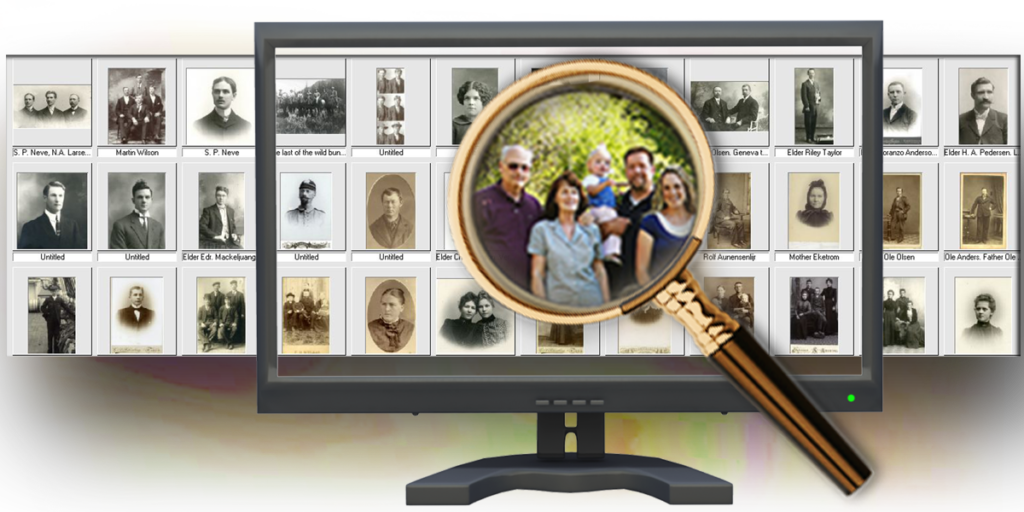
Are you frustrated trying to determine the best place to start organizing all your family history photos and files? The Guidebook will provide you with some easy and logical ways to get started.

Doing it right the first time will save time, money and frustration later.


Chapter 2 - Easier Scanning


The importance of good scanning cannot be overemphasized!

Quality scans make a big difference when printing or zooming in on photos later. Step-by-step instructions are included such as the five most important steps to a great scan and more


Simple Step-by-Step Instructions (in all chapters)

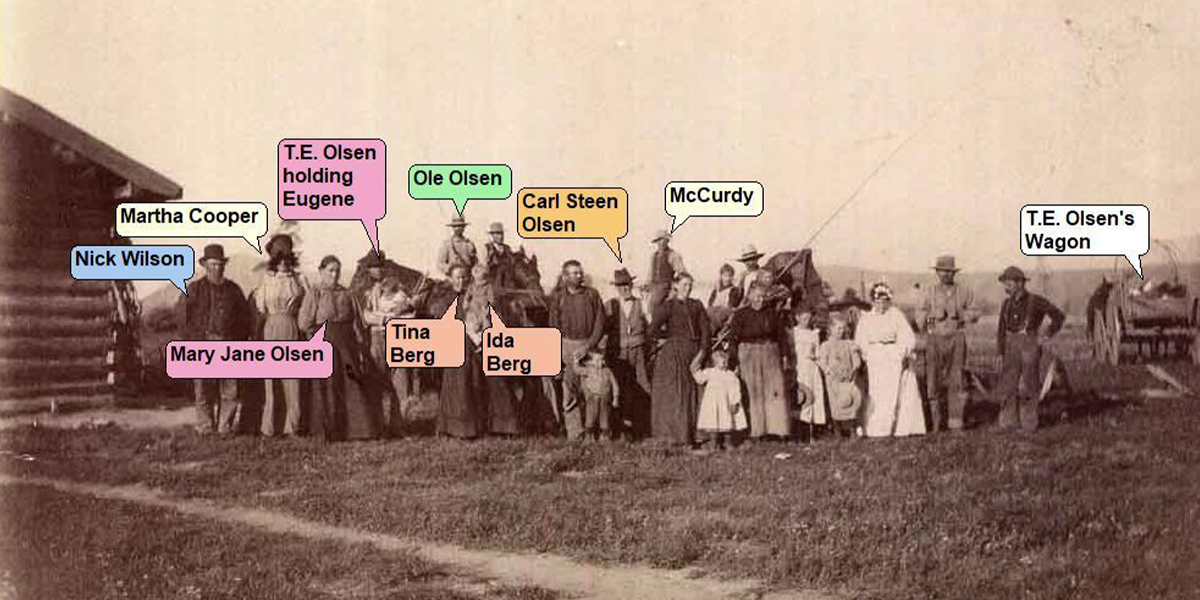
The Guidebook provides screen captures and instructions in a "1-2-3" recipe format. This will make it much easier to understand and follow instructions when you are learning new things.

Great Tips, Suggestions and Shortcuts (in all chapters)

The Guidebook is full of new tips and simple suggestions to make it easier for you to save time, money and frustration.


Sample Scanning Tip

Use "Descreen" to remove that ugly checkerboard pattern that appears on an obituary or newspaper after it has been scanned.

Here's Another Sample Scanning Tip

What do you do when you can't close the lid on your scanner? Maybe you are trying to scan an antique vase or a bronzed baby shoe. Open the lid all the way and put a white cloth over the object and your scanner. This will give you a much better scan of oversized objects. If you want to get creative, use a cloth or sheet with a printed pattern.

Scanning Mine Field Cautions (Various warning in all chapters)


This "Mine Field" caution explains why you should never "stretch" or enlarge photos after scanning


Comprehensive Content (in all chapters)

Chapter 2 - Easier Scanning
Table of Contents

Easier Scanning
The Scanning Mine Field
Scanning Checklist
Scanner Basics
Scanner Lid
Removable Lid
Optional Slide / Transparency Adapter
USB Connection
TWAIN Software
Optical Character Recognition (OCR)
Installing Your Scanner
Moving Your Scanner
Match the DPI With the Desired Output
What is DPI?
Five Basic Things You Need to About Scanning
Determine Photo Categories - First
Getting Consistent Scan Results
Use the Right Scanning Sequence
Do Not Use Automatic Buttons or Settings
Use the Correct Scanning Sequence
Special Purpose Scanning
Enlarging and Zooming
Enlarging and Cropping an Image
Photo Zooming vs Cropping
Safeguarding Image Quality
Simple Scanning Tricks
Scanning Over Size (Large) Photos
Slides & Multiple Scans
Scanning With Basic
Scanning With Heritage Collector
Determining The Best Place To Start - Checklist
Where Should You Begin?
Scanning and Printing

Chapter 3 - Using Sound and Narration


Using sound is easier than you think. All you need is an inexpensive microphone or a cable to attached to your cassette recorder. Use a microphone to tell stories, create oral histories. Learn to edit your narrations. Copy the priceless old cassette tapes to your computer with recordings of grandma or other family members. Save time, money and get better quality by doing it yourself. Internet links are provided for free sound editing software.


Chapter 4 - Digital Cameras, Video and GPS


Managing and finding your photos later and suggestions for buying a new camera are included . Converting Old Home Movies - do's,& don'ts. Read this chapter BEFORE you invest a lot of money getting your old movies converted to a DVD. Why You Need to Start Using GPS. New and fun things you can do - free software links. Adding screen captures of satellite images is both fun and adds realism to family history.


Chapter 5 - Digital Scrapbooking


Presents a different perspective about how to take advantage of new technology and samples of how to create digital scrapbooks. Something new and very different from traditional scrapbooking.


Chapter 6 - Interactive Storytelling


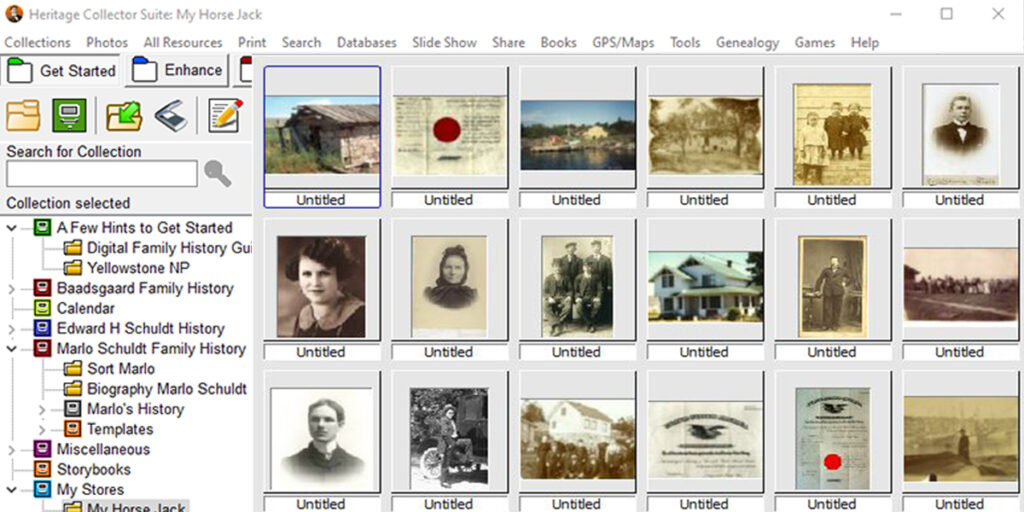
Stories are a real treat and the spice of life. This chapter offers some excellent suggestions that will help you put new life into old stories. You will discover some new ways to tell stories and make them more interesting. Mixed Media Collections. Are you struggling with how to organize ALL your materials - photos, sound files, video clips, text documents, PDFs and other file types? The Guidebook will show you how to make your file collections more useful and organized.


Chapter 7 - Creating a Bound History

Ways to save money and things you need to know and avoid BEFORE you begin.

What's Paper grain? Have you even opened a book that resisted staying open? Have you seen a book with a broken or cracked spine? These are few of the symptoms of a book that has been printed and bound with the paper grain running in the wrong direction. There is much more you need to know.


Chapter 7 takes you through each step required to create a beautiful history or biography. Checklists and simplified instructions will make it easy.

Learn ways to save time and money. Do it correctly BEFORE you print your next book.

PLEASE do yourself a big favor and read this chapter before proceeding with your book.

  • Preparation Guides and Checklists. There are several things you need to know BEFORE you send your book to the printer. A few sample questions. Will your printer have the same fonts? What types of file formats will the printer accept?
  • Image Scanning Recommendations. Have you scanned your photos at the right resolution for quality printing? Checking your photo scans on your monitor is a big mistake and will not guarantee quality printing. See Chapter 2 - Easier Scanning for guidelines.
  • Page Formatting Guides. Correct margins prevent the text from going too far into the center of the book binding. Did you know the bindery will have to trim your book making the margins even smaller?
  • Paper Quality and Weight. Photos will look their best on the right kind of paper and it doesn't cost that much more.
  • The Importance of Paper Grain. Books printed on paper with the grain running in the wrong direction may cause the binding (spine) to break or split later.
  • Save Money on Color Printing. Don't get charged for printing color on both sides when the page is black and white on one side.
  • The Absolute Necessity of a Press Check. How to protect yourself, guarantee the quality of your book and save you money if something goes wrong during printing.
  • Binding Considerations. Check your options. Evaluate the advantages and costs of hardbound, wire, coil, and perfect bind. Don't get "burned" because the bindery used "hot glue" to save money. Did you know that a hot glue book binding may melt in the back window of your car.
  • Writing Tips and Suggestions. Browse through some simple suggestions and ideas to make your book more interesting and easier to write.
  • Multimedia Introduction. Consider creating a CD/DVD companion to go with the book. It could contain PDF, photos, video and audio clips. A video clip introduction or preface is priceless. The cost is only pennies and the Guidebook tells you how.


All this helpful information and more is contained in the 7th Chapter - Creating a Bound History.


Chapter 8 - Preserving & Archiving


Ways to find and protect your treasures while saving hard drive space. Don't wait until you have a hard drive crash or a virus attacks your computer.


Chapter 9 - Understanding Your Computer


Basic computer terminology is explained in everyday terms.

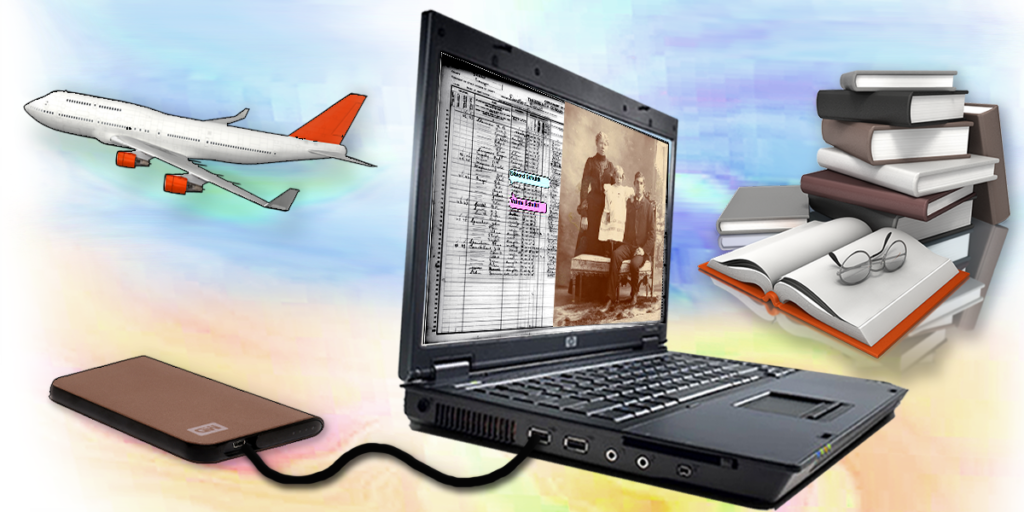
Computer hardware is explained.

If you are gong to buy a new computer you need to read this chapter first.

Suggestions for maintaining your computer


Some good reasons why you should consider making your next computer a laptop


 Avoid Costly Mistakes

Warning signs help keep you out of trouble!

The Guidebook provides valuable information and warnings to help you avoid costly mistakes. These little warnings are called "Marlo's Mine Fields" and are included throughout the Guidebook.

Do you feel like you are walking through a mine field every time you start a new family history project? Have you ever said?

  • If I could do it over again I wouldn't make that mistake!
  • There must be an easier way!" "I'll never do that again!


This "Mine Field" warns you about how a static "shock" can actually ruin your computer or one of the devices attached to your computer.

Each chapter contains warnings to helps you prevent different kinds of problems before they happen.


About Us | Contact Us | Home  

Heritage Digital Family History Guidebook © Copyright 2006-7 Marlo E. Schuldt Heritage Collector © Copyright LifeStory Productions, Inc. Patent #7,197,493 B2